
Tabbed sections let visitors switch between several blocks of content in the same space, which keeps a long page compact.
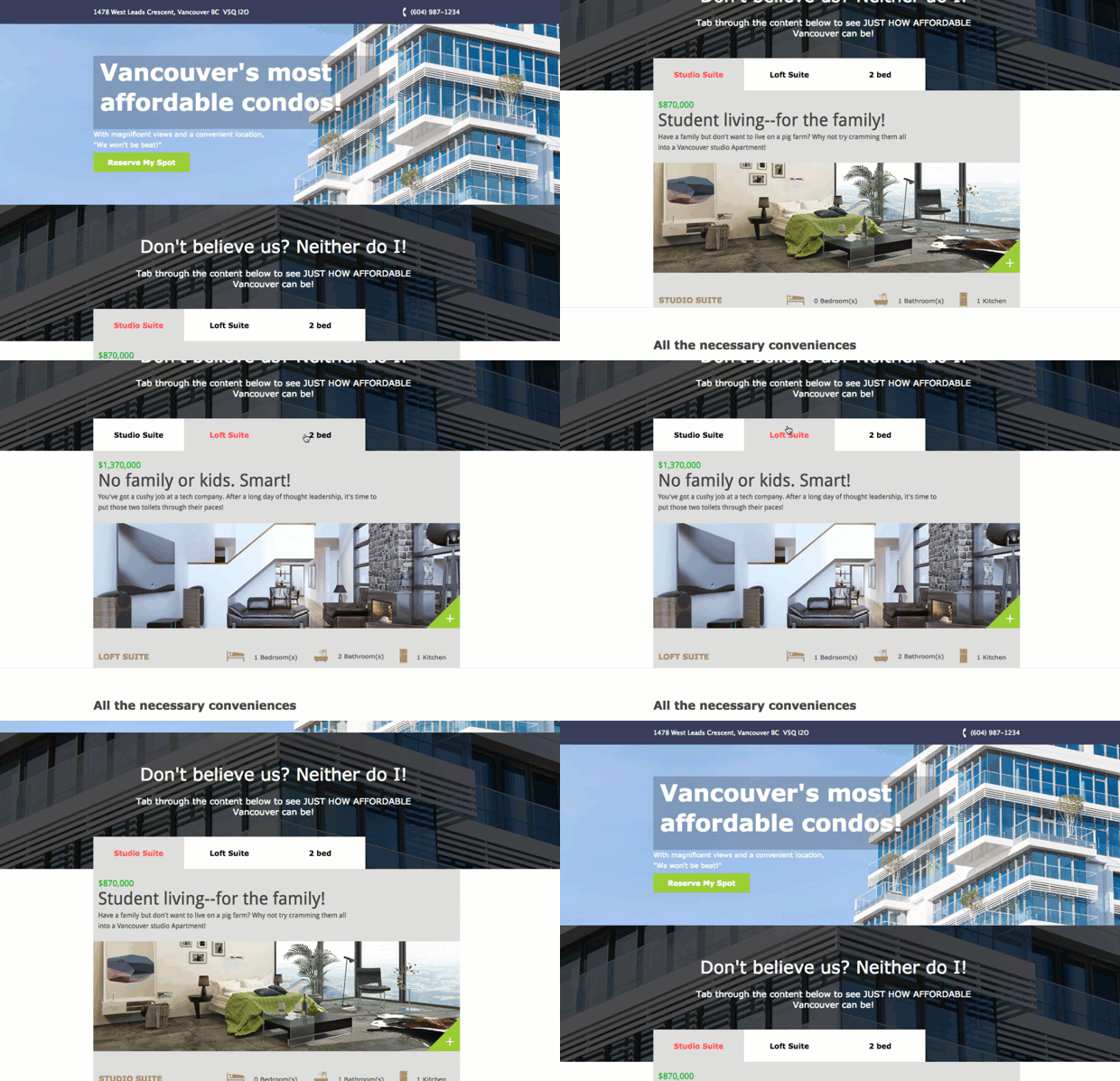
This is community code, not an official Unbounce feature. Unbounce Support can't troubleshoot custom code. This setup takes some care, so test it on a published page before relying on it, and work with a developer if you aren't comfortable editing HTML, JavaScript, and CSS.
Add tabbed sections to your page
The scripts are hosted on GitHub as Create tabbed sections on your Unbounce page.
- Add a box element to hold the tab buttons.
- Add a larger box element below it to hold the tab content.
- Add a button for each tab and place the buttons, in order, inside the first box.
- For each tab, add a box element with that tab's content, place it inside the content box, and hide it.
- For each tab button, enter the ID of its content box in the Go to URL field.
- Copy the JavaScript from
tabbed_section.jsand add it to the JavaScripts section. - In the script, enter the IDs of your tab buttons and content boxes.
- Copy the CSS from
tabbed_section.cssand add it to the Stylesheets section. - In the CSS, change the colors to set how the active tab looks.
- Save and republish the page.