
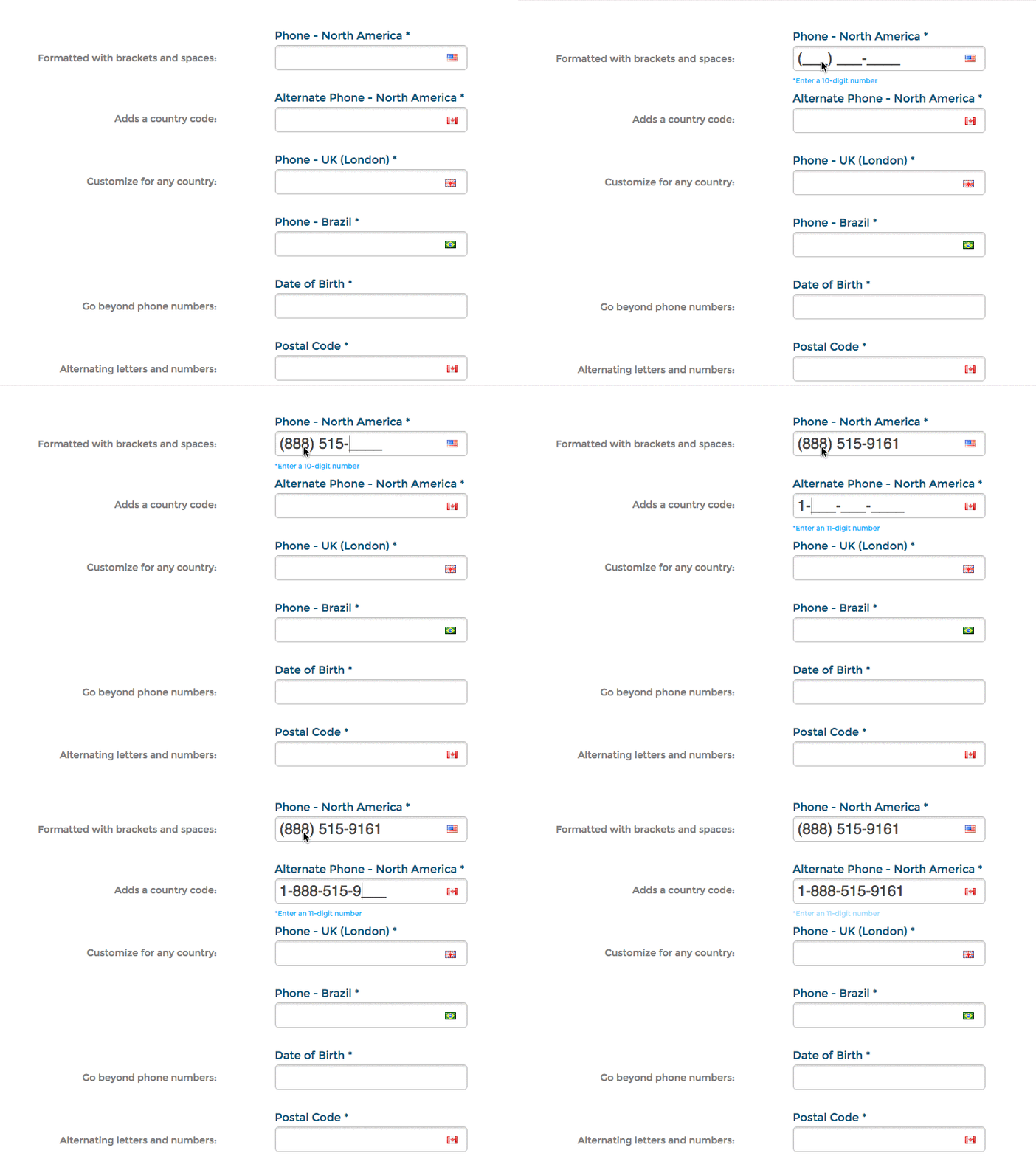
An input mask makes visitors enter data in a set format, such as a phone number with dashes or a date of birth. Consistent data is easier to use and avoids errors when your form sends leads to other systems. You can create masks for almost any format.
This is community code, not an official Unbounce feature. Unbounce Support can't troubleshoot custom code. Test it on a published page before relying on it, and work with a developer if you aren't comfortable editing HTML, JavaScript, and CSS.
The plugin has a known issue on some Android devices. Test your form on Android before relying on it.
Add masks to your form fields
The scripts are hosted on GitHub as Form Field Masking - No Conflict Mode.
- Copy mask_plugin.js and add it to the JavaScripts section with placement set to Head.
- Copy add_mask.js and add it to the JavaScripts section with placement set to Before Body End Tag. This script applies the masks to your fields.
- Replace the example field IDs, such as
#phone_number_north_america, with the IDs of your own fields. -
Change the mask, for example
.mask("(999) 999-9999"), to the format you need. Masks use the following characters.-
ais a letter (A to Z, a to z). -
9is a number (0 to 9). -
*is a letter or number.
-
- Repeat step 4 for each field you want to mask.
- Save and republish the page.
For more options, see the Masked Input plugin documentation.
Test the change
Run an A/B test with a small share of traffic to confirm the masks don't lower your conversion rate. See How to Run an A/B Test.