
A character counter shows visitors how many characters they have left as they type in a form field. This is useful when an integration limits the length of a field, such as a comment or username. The script is based on a character counter example.
The counter discourages long entries but doesn't stop a visitor from submitting a form that goes over the limit.
This is community code, not an official Unbounce feature. Unbounce Support can't troubleshoot custom code. Test it on a published page before relying on it, and work with a developer if you aren't comfortable editing HTML, JavaScript, and CSS.
Add the counter to your form
- Add a Custom HTML element directly below the form field, with the following code. The counter appears wherever you place this element.
<div id="textarea_feedback"></div>
- In the JavaScripts section, add the following script:
     <script src="//ajax.googleapis.com/ajax/libs/jquery/1.4.2/jquery.min.js" type="text/javascript"></script>
     <script>
     jQuery(document).ready(function() {
        var text_max = 99;
        jQuery('#textarea_feedback').html(text_max + ' characters remaining');
        jQuery('#email').keyup(function() {
            var text_length = jQuery('#email').val().length;
            var text_remaining = text_max - text_length;
            jQuery('#textarea_feedback').html(text_remaining + ' characters remaining');
        });
    });
</script>- Double-click your form and find the Field Name and ID of the field you want to count.
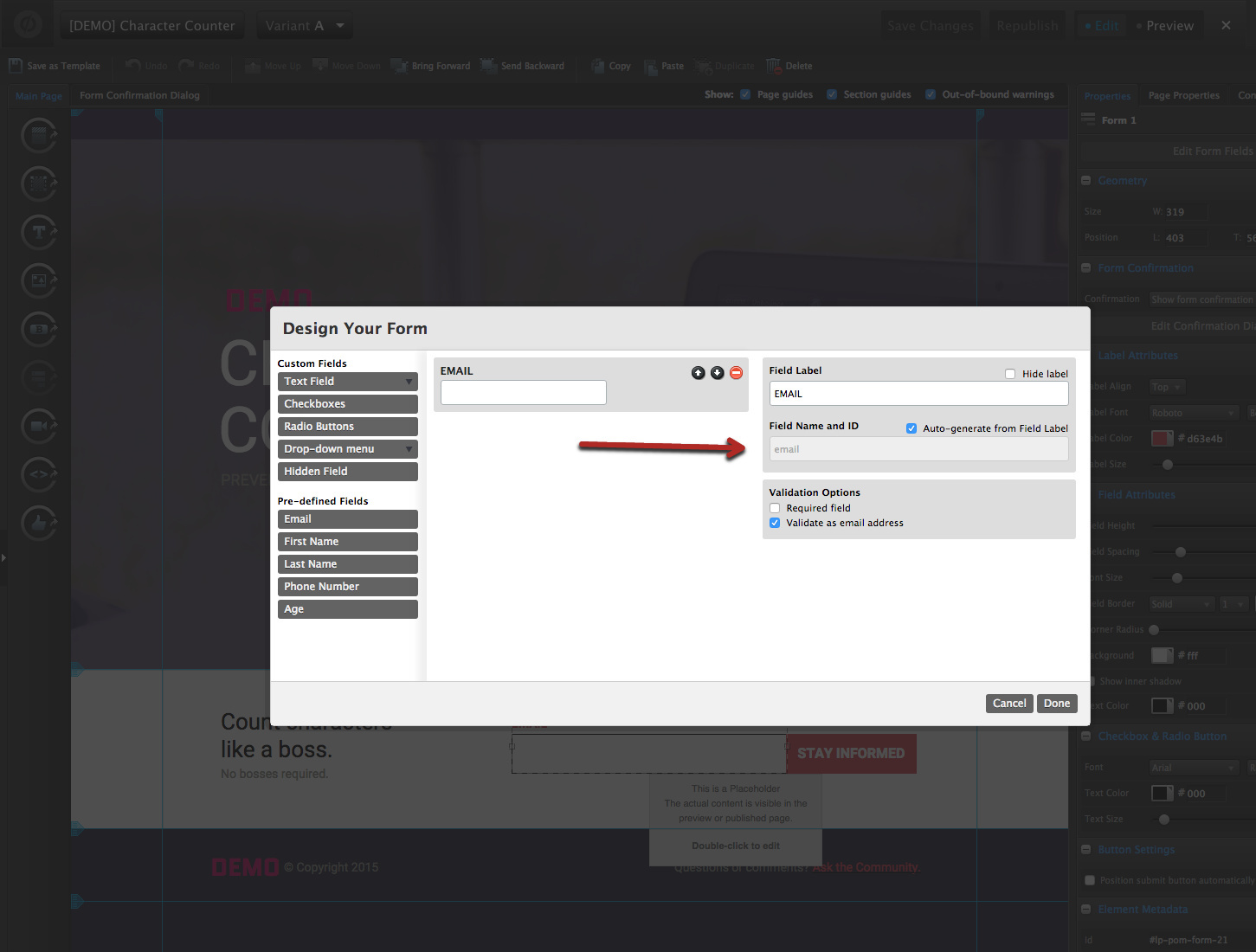
- In the script, replace
#formfieldwith that field ID. For example, for a field with the IDemail, use#email.
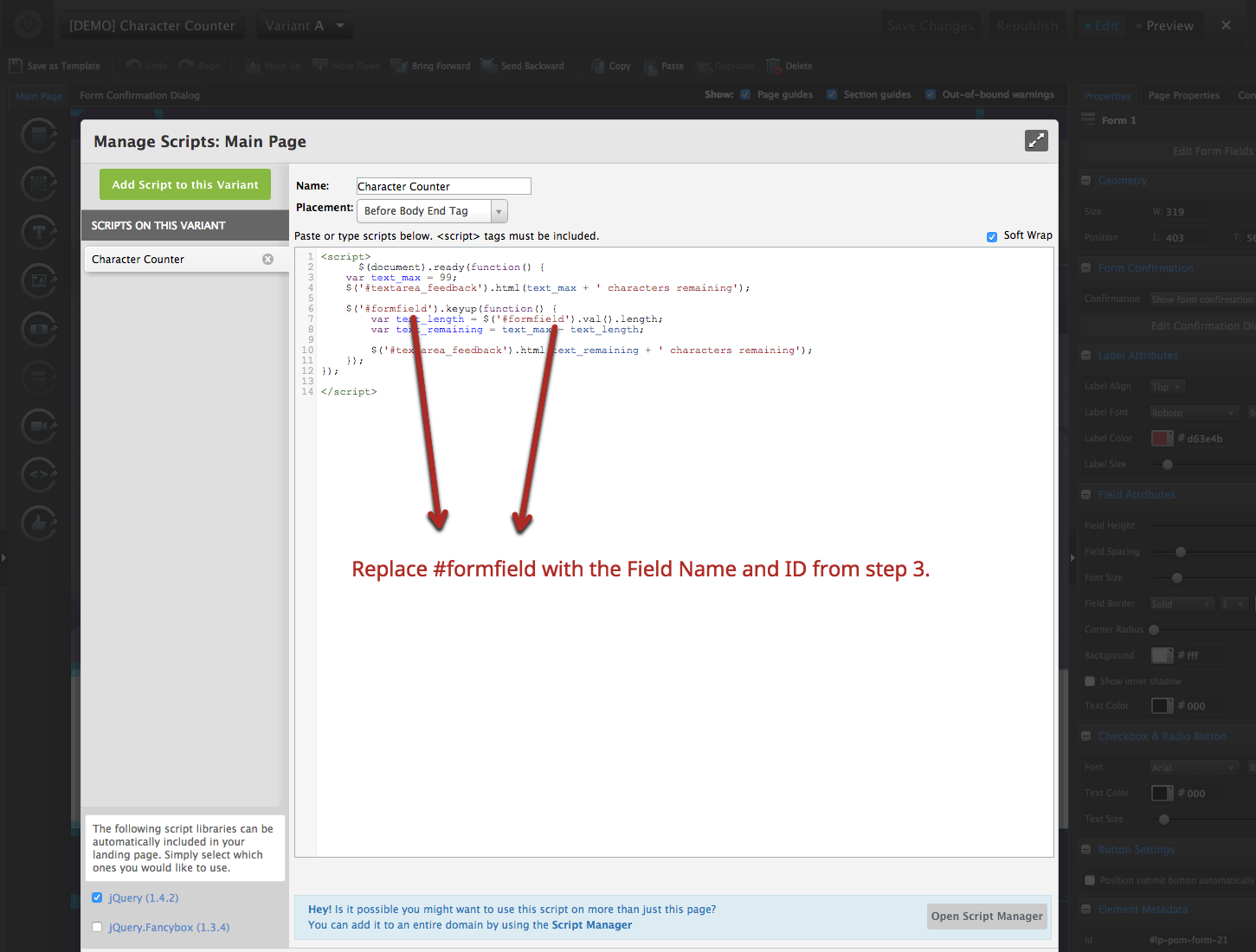
- Save and republish the page.