
This setup adds a navigation header that stays at the top of the screen as visitors scroll. Its buttons jump to sections of the page with a smooth scroll, and your call to action stays in view. It's designed for desktop.
For announcement bars that stay in view, you can also use Unbounce's built-in Sticky Bars.
This is community code, not an official Unbounce feature. Unbounce Support can't troubleshoot custom code. Test it on a published page before relying on it, and work with a developer if you aren't comfortable editing HTML, JavaScript, and CSS.
Before you start
This setup uses two scripts hosted on GitHub.
Build the header
- Add a box element that spans the full width of the page section. This is your header, and you can style it however you like.
- Add a button element for each navigation link. To show only the button text, set the button color's opacity to 0 and remove its border. Once the first button is set up, copy and paste it to create the rest.
- Size the buttons and place them inside the header box.
- Add an anchor for each button. Any element can be an anchor, but a transparent box works well. Add a box, set its opacity to 0, remove its border, and place it where the button should scroll to. Allow for the height of the header when you place it.
- For each button, enter the anchor's ID, from Element Metadata in the Properties panel, as the button's Go to URL destination.
-
Add both scripts to the JavaScripts section. In the Sticky Headers script, enter the ID of your header box. See adding JavaScript to a page for details.
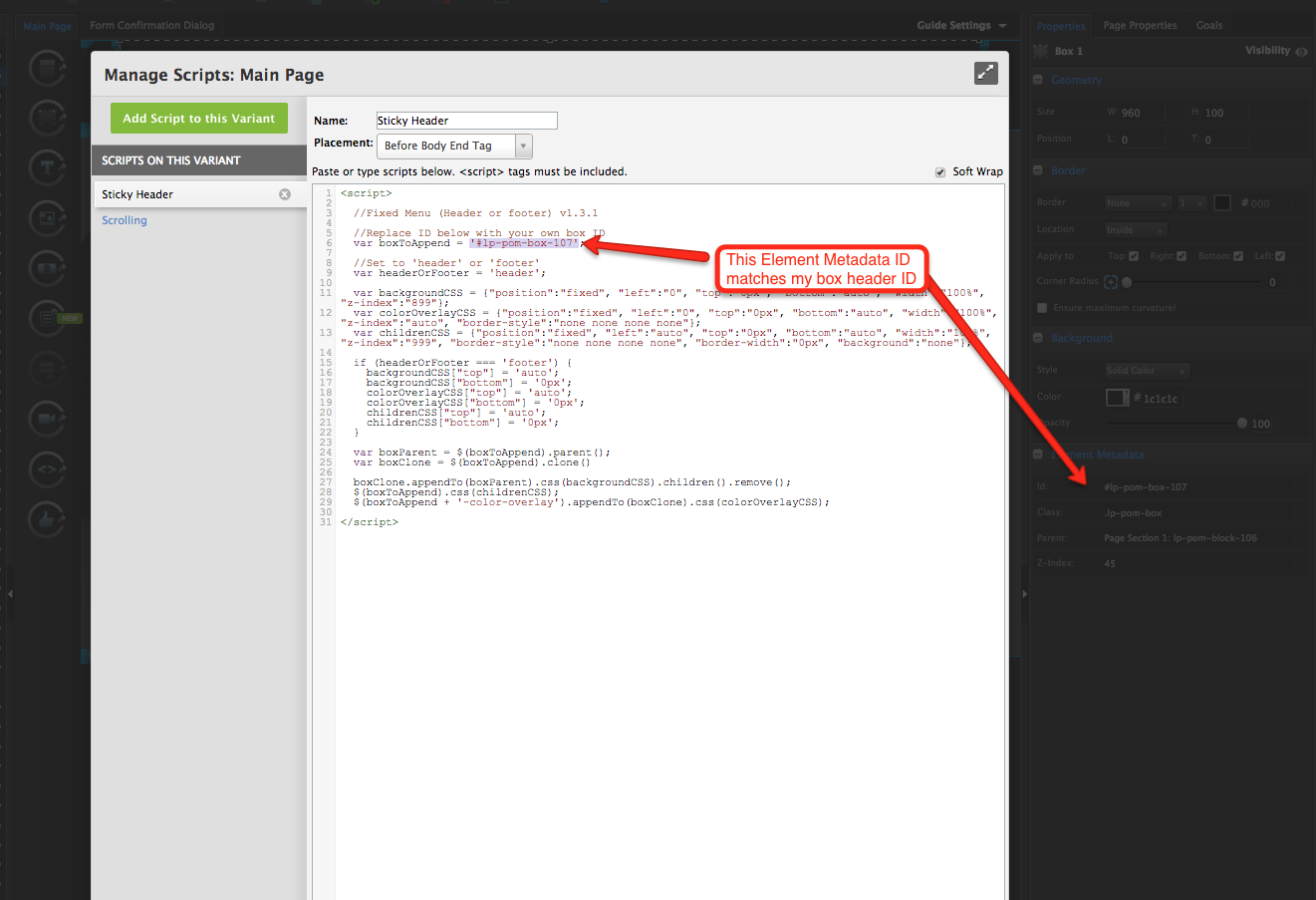
- Switch to the mobile view and either make the header fit the smaller screen or hide it.
- Save and republish the page.
Test the change
Run an A/B test with a small share of traffic to confirm the header doesn't lower your conversion rate.