
This script applies a short animation to an element, such as a hero image, when the page loads. It's a subtle way to draw attention to that element. The effect uses the animate.css library.
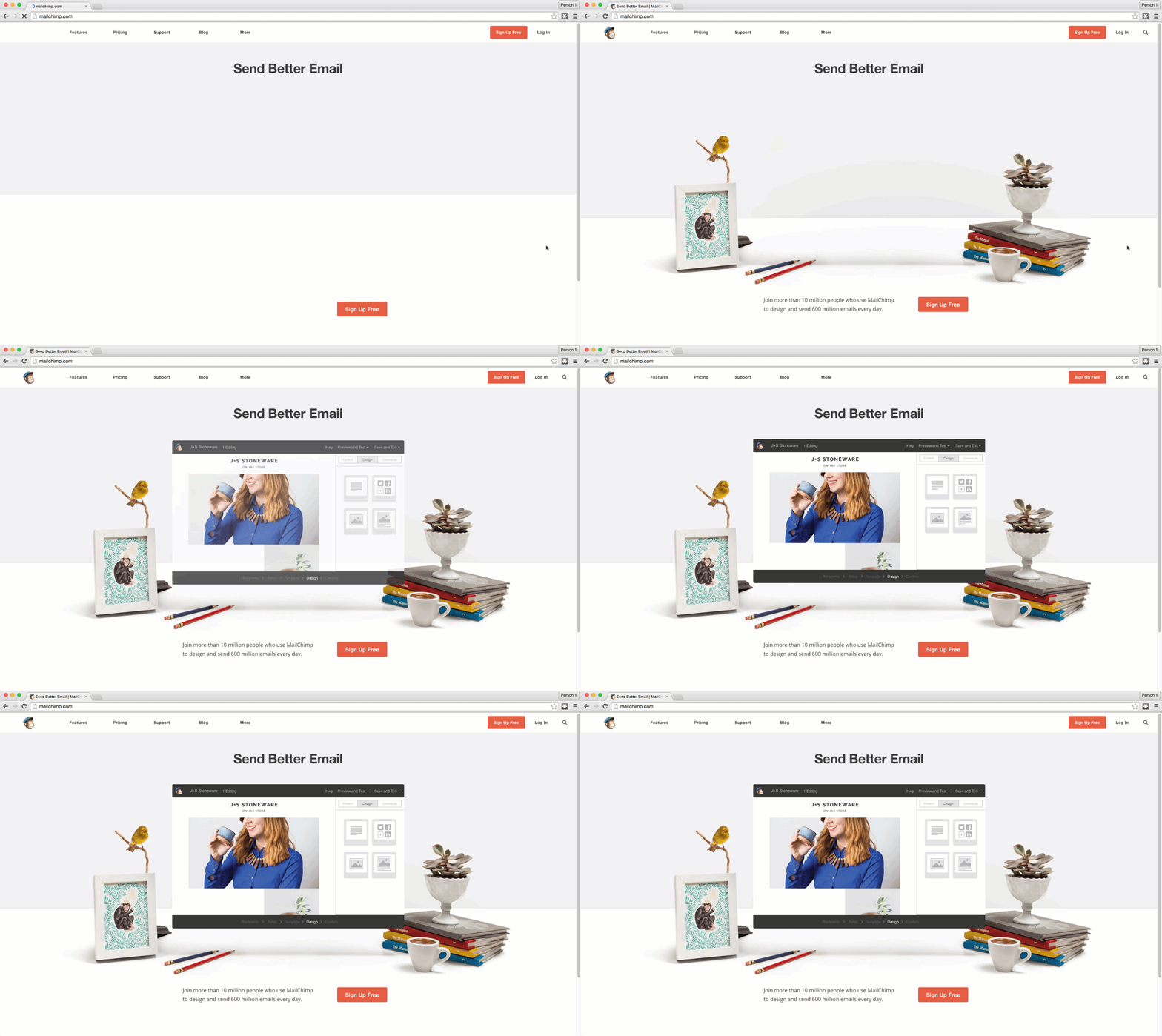
This is community code, not an official Unbounce feature. Unbounce Support can't troubleshoot custom code. Test it on a published page before relying on it, and work with a developer if you aren't comfortable editing HTML, JavaScript, and CSS.
Add the animation to your page
- In the JavaScripts section, add the following script with placement set to Before Body End Tag:
<script src="//ajax.googleapis.com/ajax/libs/jquery/1.4.2/jquery.min.js" type="text/javascript"></script>
<link rel="stylesheet" href="https://cdnjs.cloudflare.com/ajax/libs/animate.css/3.5.1/animate.min.css">
<script>
//The page element that will be animated on page load.
var yourElement = "#lp-pom-image-54";
//The effect that will be applied to your page element. See https://daneden.github.io/animate.css/ for full list.
var yourEffect = "slideInUp";
var effectClass = "animated " + yourEffect;
jQuery( document ).ready(function() {
  jQuery(yourElement).show().addClass(effectClass).one('webkitAnimationEnd mozAnimationEnd MSAnimationEnd oanimationend animationend', function(){
    jQuery(this).removeClass();
  });
});
/**
    * Do not remove this section; it allows our team to troubleshoot and track feature adoption.
    * TS:0002-03-028
*/
</script>- Replace the value of the
yourElementvariable with the ID of the element to animate. You can find the ID in the Properties panel. - Replace the value of the
yourEffectvariable with the effect you want. See animate.css for the full list. - Add the following CSS to the Stylesheets section. It hides the element until the animation starts.

#lp-pom-image-1 { display:none; }- In the CSS, replace
#lp-pom-image-1with the ID of your element. - Save and republish the page.
Test the change
Run an A/B test with a small share of traffic to confirm the animation doesn't lower your conversion rate.